

Site wizard: go from a blank install to a full first draft
The site wizard plans and builds the pages, menus and content of a new site, along with its theme, and you approve every step on the way.
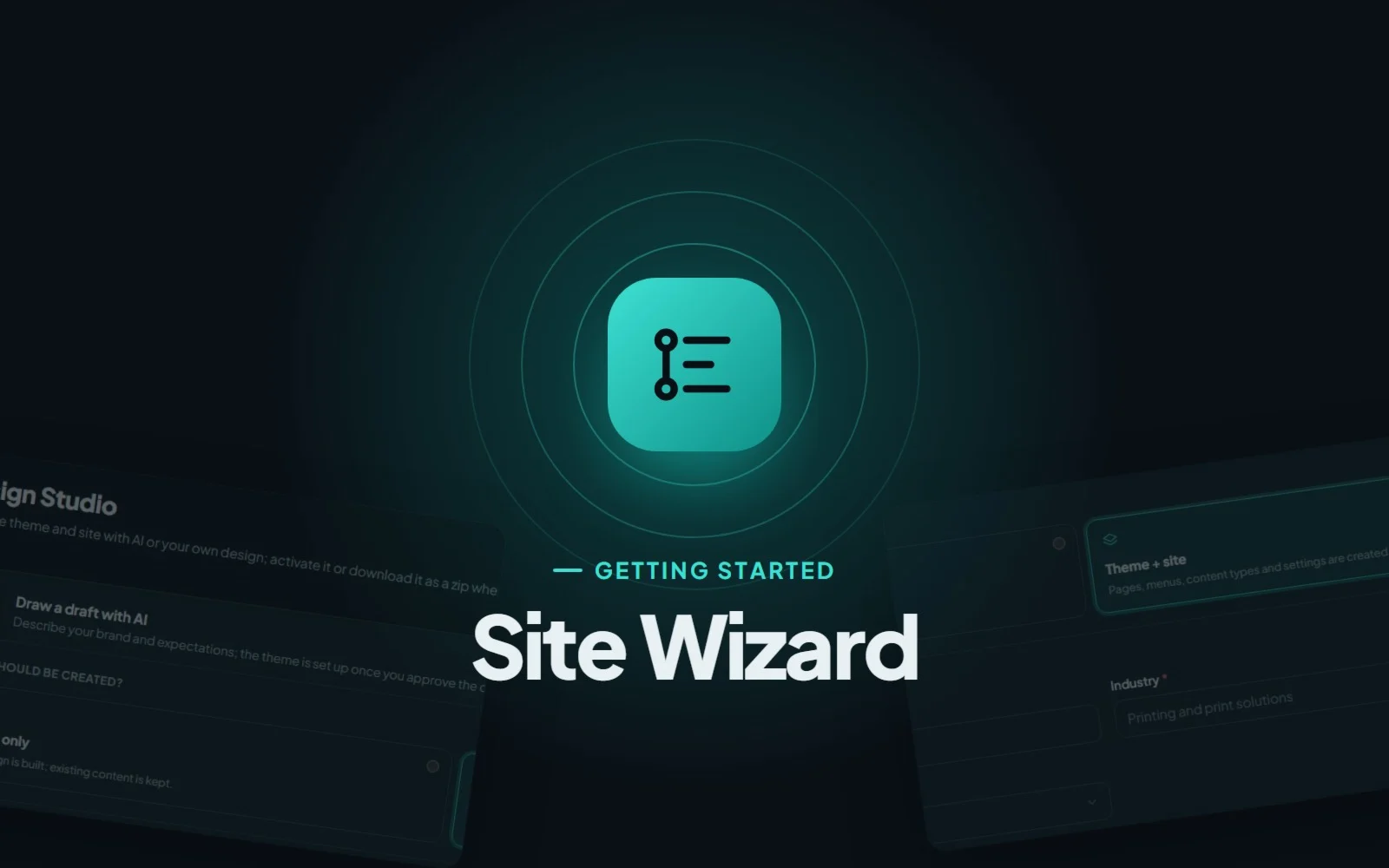
Starting a new website usually means two jobs at once: making it look right and filling it with something worth reading. A theme alone gives you a beautiful empty house. The site wizard in CMS.Cndk is about moving in the furniture too: it plans and creates the pages, menus and content of a new site along with its design, and asks for your approval at every step.
Theme only, or theme + site
The site wizard lives inside Design Studio. When you start a new design there, you choose between two paths:
- Theme only builds just the design. It writes no content and does not activate the theme.
- Theme + site goes further. Besides the look, the AI plans and creates the pages, menus, content types and settings, and then activates the new theme.
The wizard is the second path. Think of it as a first version of the whole site rather than a theme waiting for content.
The five steps
In Theme + site mode the wizard works through five steps, and nothing moves on until you approve it.
1. Research (optional)
The wizard can gather context about the brand and its sector using Google Search. You see a summary and can correct it, or skip this step completely.
2. Site plan
Next comes the plan: the design direction, any new content types, the tree of pages and records, and the menus. If something is missing, say a page for opening hours or a services list, ask for changes before you approve.
3. Draft
The AI draws a script-free HTML mockup of the home page and one inner page. You refine it in the chat, and the last 10 versions can be restored, so trying an idea costs nothing.
4. Theme
The theme is built in four checked stages: design system, layout, templates and blocks.
5. Site
Finally the content arrives. Languages and content types come first, then the content of every planned record, then menus, theme and site settings such as the site name and home page. At the very end the theme is activated.
If you prefer to start from a design you already have, choose Upload a ready design in Theme + site mode, and the plan is derived from your uploaded pages instead.
Who it helps
The wizard shines when you need a working first version quickly. An agency building a site for a dental clinic, a printing company or a consultancy gets a complete starting point in one go. It also suits small businesses that would rather react to a finished draft than stare at an empty theme.
You will find it in the owner panel: Superadmin → Design → Design Studio → Draw a draft with AI (or Upload a ready design), then Theme + site. Only the superadmin can use it.
Running the wizard
- Open Design Studio, choose Draw a draft with AI and select Theme + site.
- Fill in the company name, the sector, the site colour mode and any notes. Add up to 3 reference screenshots of sites you like (PNG, JPEG or WebP, 4 MB each), then start the wizard.
- Enter your Gemini API key and choose a model.
- Run or skip the research, then review and approve the site plan.
- Review the draft and approve it with Approve the draft, build the theme and content.
- Wait while the generation steps run. If a step fails, use Try again, or skip it and carry on.
What to expect afterwards
A few things are worth knowing before you hand the site to a client:
- One language first. The wizard writes content only in the site's default language. Add other languages afterwards under Languages, where AI translation can fill them in.
- Photos are up to you. Images are left empty so the theme shows placeholders. Upload real photos to the Media library afterwards.
- Your home page is reused. The existing home page is updated rather than a new one being created.
- Everything stays editable. Content is created through the normal content rules (validation, addresses, versions), so you can change all of it later in the customer panel.
- You can keep refining. After the wizard finishes, carry on through the Design Studio chat, or rerun only the theme stages from the approved draft.
- Build here, publish there. You can build the site on a separate installation and move it to the live server with Superadmin → Site Package.
Want to know more about the design side? The Design Studio guide covers the chat, Apply and Restore, and the safety checks behind every suggestion.
Next time you start a site from scratch, give the wizard a try: describe the business, approve the plan, and see how much of the first version is already done when you come back.
More guides
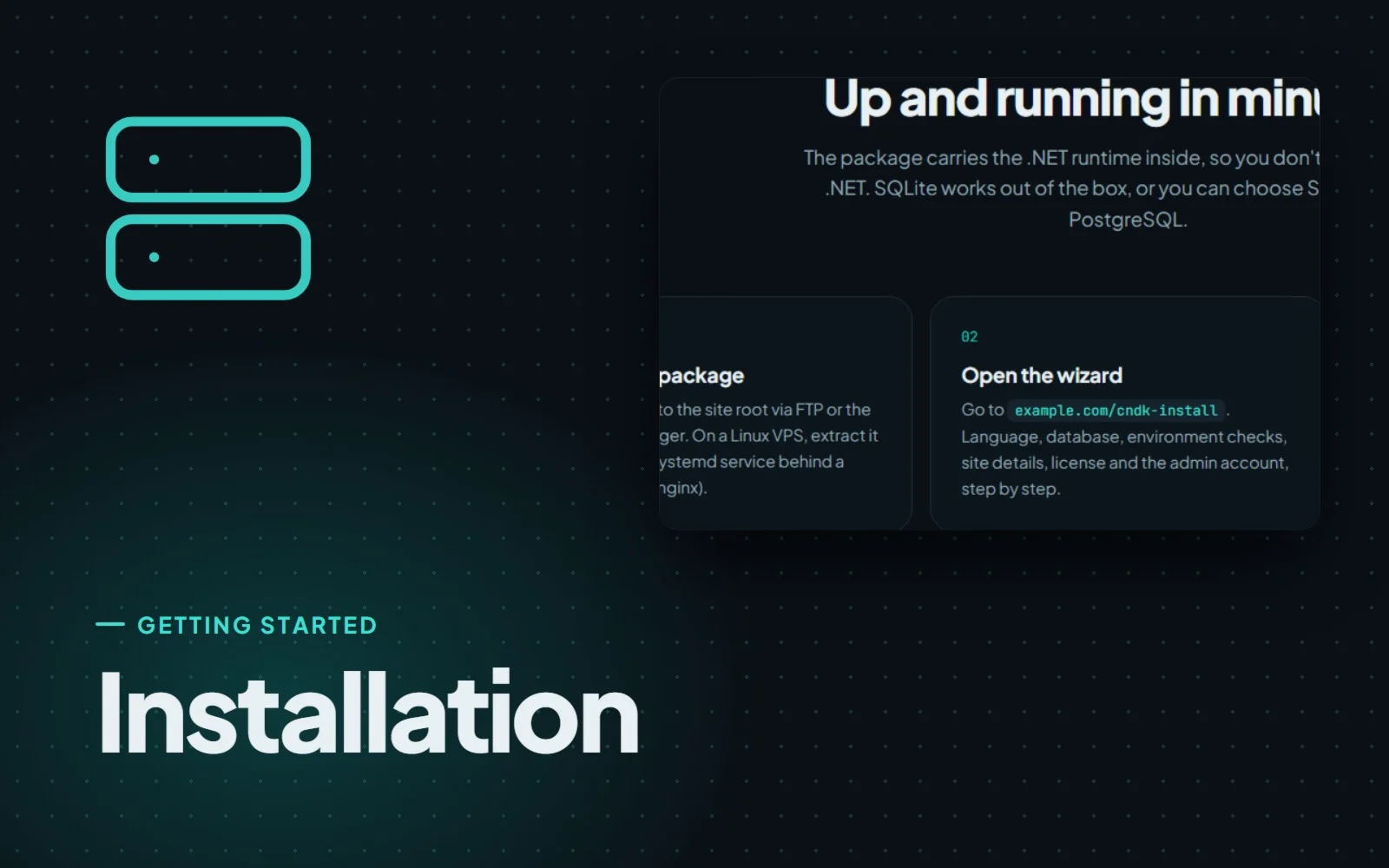
Installing CMS.Cndk on IIS, Plesk or a Linux VPS, step by step
CMS.Cndk ships as a self-contained package for Windows or Linux. Upload it, open the setup wizard in your browser and follow it from language to admin account.
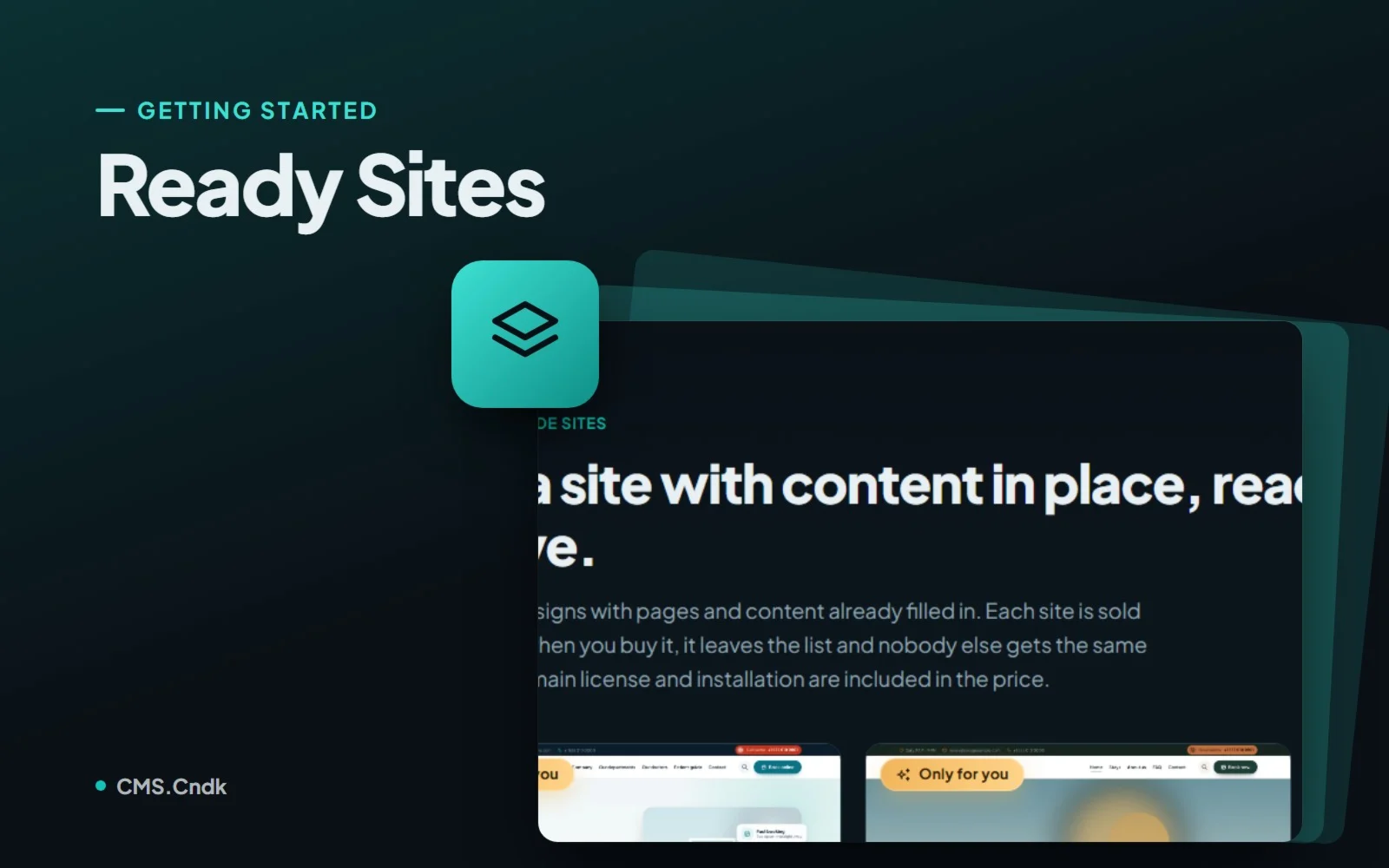
Ready sites: a finished website that is only ever sold once
Ready sites are complete CMS.Cndk websites with design, pages and sample content in place, installed on your server and sold to one buyer only.
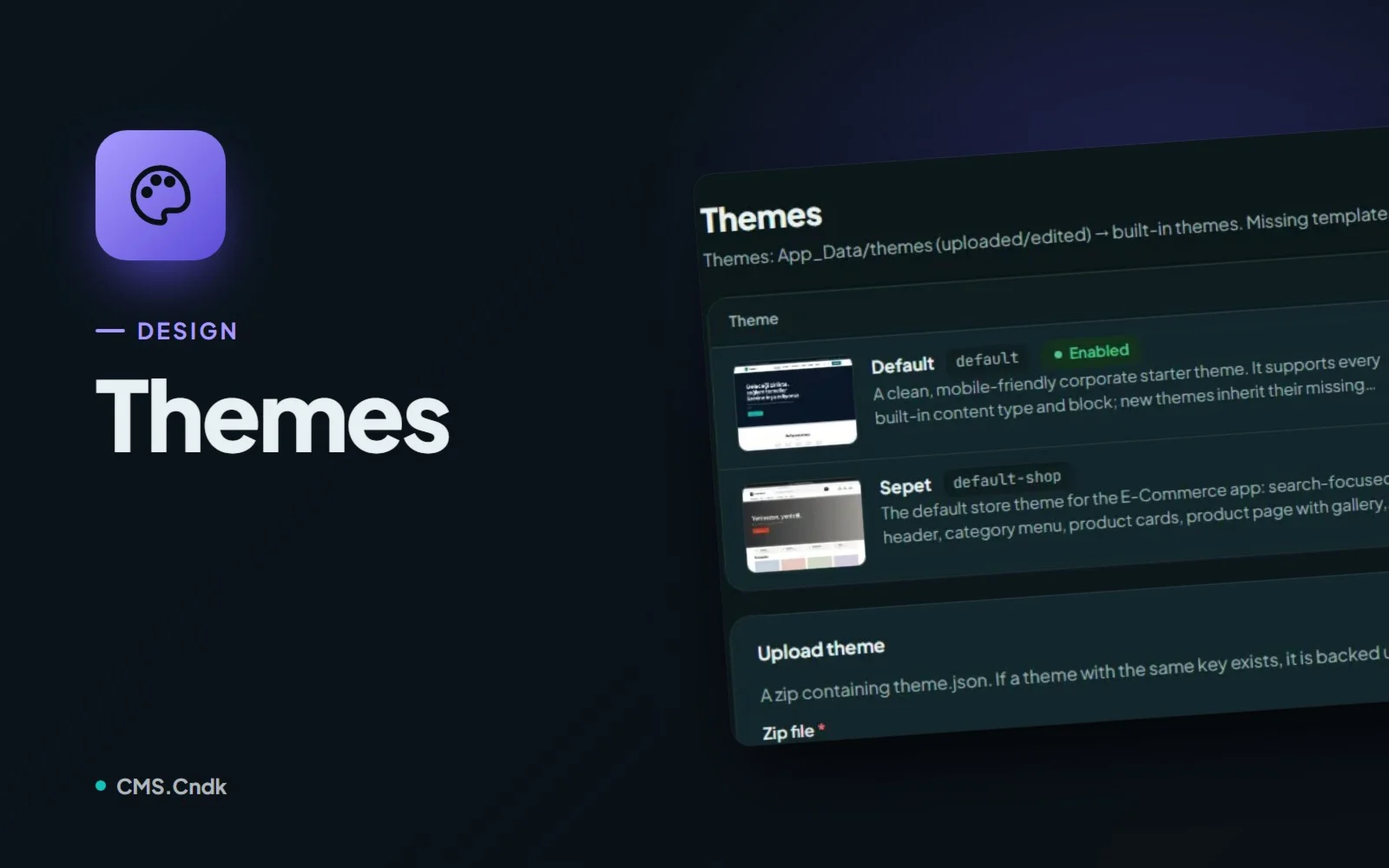
Themes in CMS.Cndk: a new look without losing a single page
Pick a theme from the store or upload your own, add starter content, then let editors fine-tune the logo and options in Theme Settings without code.