

Themes in CMS.Cndk: a new look without losing a single page
Pick a theme from the store or upload your own, add starter content, then let editors fine-tune the logo and options in Theme Settings without code.
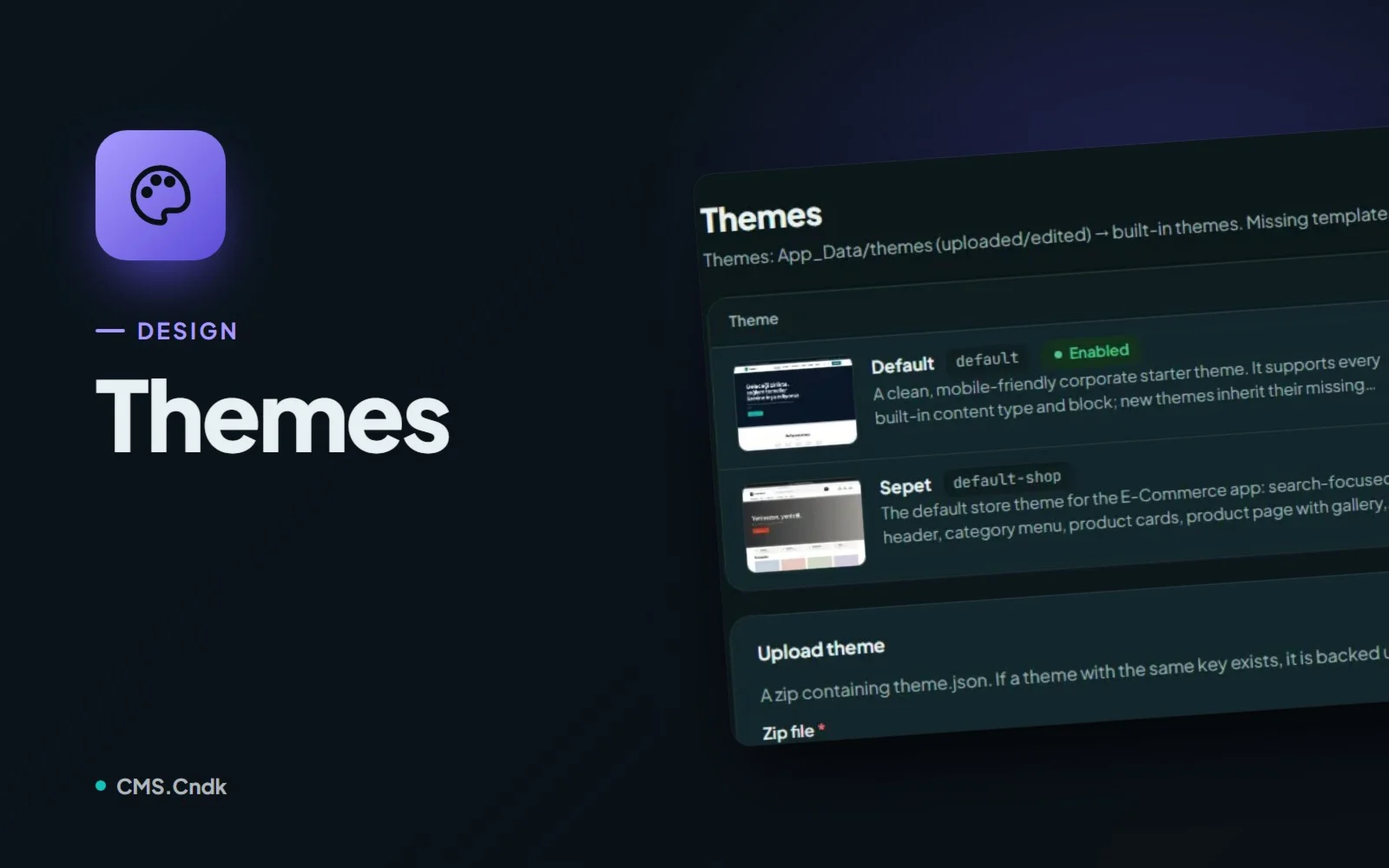
Think of a theme as the clothes a website wears. The pages, records and posts underneath stay the same; the theme decides the outfit: layout, page templates, block designs, colours, fonts and a few options that only that theme offers.
That separation is the important part. In CMS.Cndk, content is stored apart from the theme, so switching themes does not delete your pages or records. One honest caveat: a new theme may not offer the same templates or custom blocks as the old one, so it's worth a look around after the switch.
Where themes live
Themes belong to the owner (superadmin). You'll find them in the owner panel under Superadmin → Design → Themes, with the Theme store button at the top right. The people who edit content day to day work in the customer panel and get a gentler version: Design → Theme Settings.
On the Themes screen you can:
- Activate a theme to put it live on the site.
- Duplicate a theme to get a working copy under a new name.
- Download zip to take a theme with you.
- Delete a theme; a backup is taken, and Theme backups is where you restore from.
- Upload theme to install your own zip. It is validated first, and if a theme with the same key already exists, that one is backed up and replaced.
Browsing the theme store
The Theme store lists the themes published on cms.cndk.org. Each one shows a screenshot, category, version, size, author and the apps it needs. Those apps are marked green if they're already installed and yellow if they aren't, so a theme that expects an app you don't have tells you up front.
Download and install adds a theme to your list without changing the site, a bit like trying on a jacket in the fitting room before you walk out in it. Paid themes use Install with key together with the single-use installation key you received at purchase. When a new version is published, an Update button appears, and the current theme is backed up first.
Starter content and the Files editor
Some themes bring starter content: sample pages, menus, images and sample data. That's what turns an empty clinic site into something that already looks like a clinic. Install starter content takes a data and media backup first, doesn't delete existing records, and skips pages whose address already exists.
For hands-on work there's Files, a code editor with a preview. Its Preview all blocks page shows the block designs together, which makes a block that looks off easy to spot. Colors & fonts edits the theme's design tokens and keeps a history, so a bold colour experiment is easy to walk back.
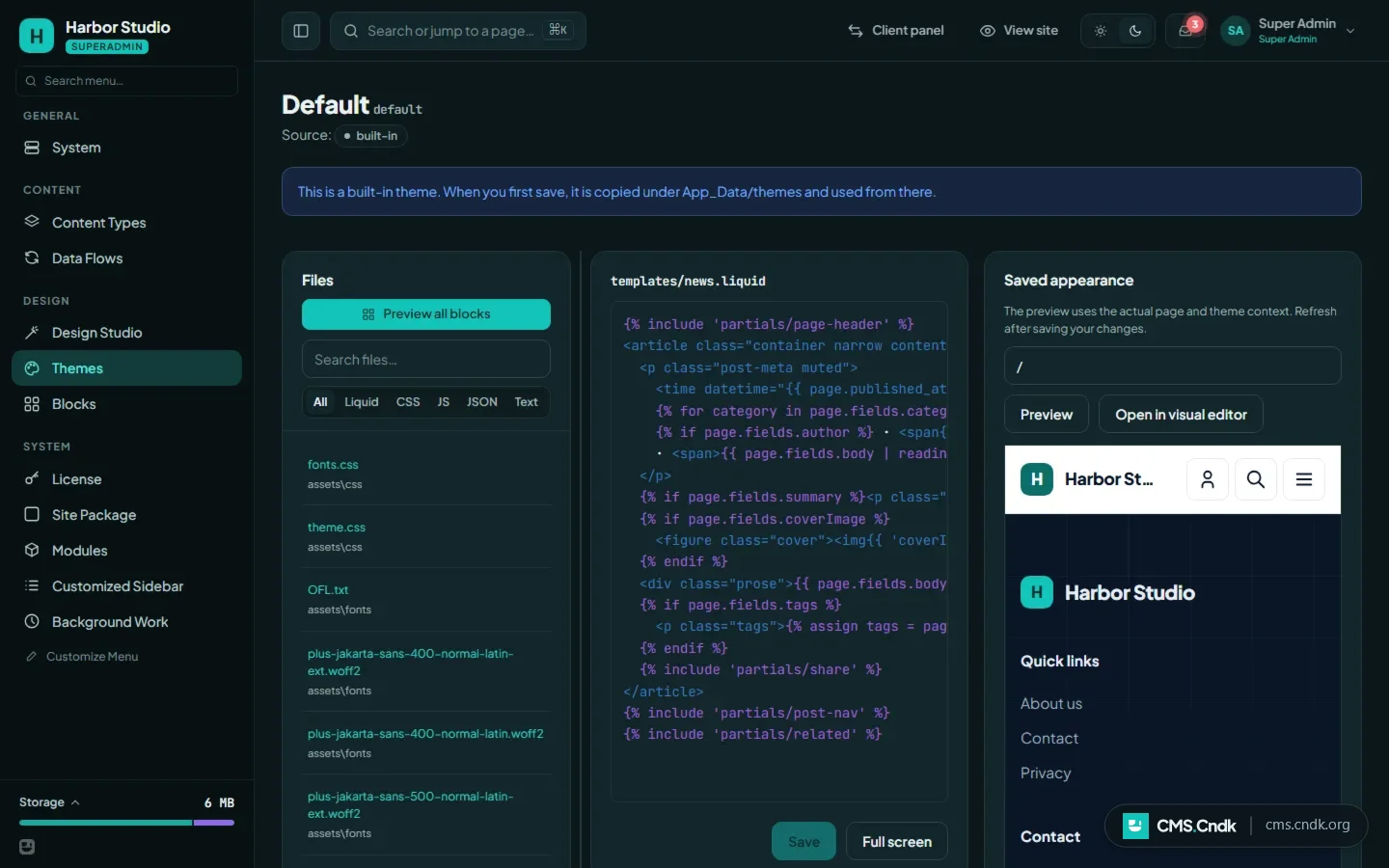
If you've installed apps, their page templates can be restyled per theme from Files → App templates, and Revert to default brings the original back.
Putting a theme live, step by step
Say you're setting up a site for a small bakery. Here's the path from an empty site to a working design:
- Open Superadmin → Themes → Theme store, filter by category or search, and Download and install a theme (or upload your own zip).
- If the theme has starter content, use Install starter content.
- Otherwise, Activate the theme.
- Check the home page, menus, forms and the mobile view.
- Let editors fill in the logo and options in Theme Settings.
That last step matters more than it looks. In Theme Settings, editors change the logo, header and footer options and other fields the theme offers, per language where the theme allows it, all without touching code. Earlier values are kept, so they can be restored if a change doesn't work out.
A few things worth knowing
- Installing or updating from the theme store asks for your password if you haven't entered it in the last 30 minutes. A theme that needs a newer core version can't be installed.
- Updating a store theme replaces the changes you made in its files. If you plan to customise a store theme, duplicate it first and work on the copy.
- Starter content is installed in the site's default language, or in English if the theme has no content in that language.
- A theme can bring its own content types. Any fields it can't add are listed under Content type notes on the Themes screen.
Themes suit agencies that reuse and adapt designs across client sites, and businesses that want a ready design for their sector, such as a store, clinic, salon or accommodation site, and then fine-tune it. If nothing in the store quite fits the brand, Design Studio can design a theme for it from scratch.
Next time you start a site, open the theme store first: install two or three themes, look at each with the site's real content, and activate the one that feels right.
More guides
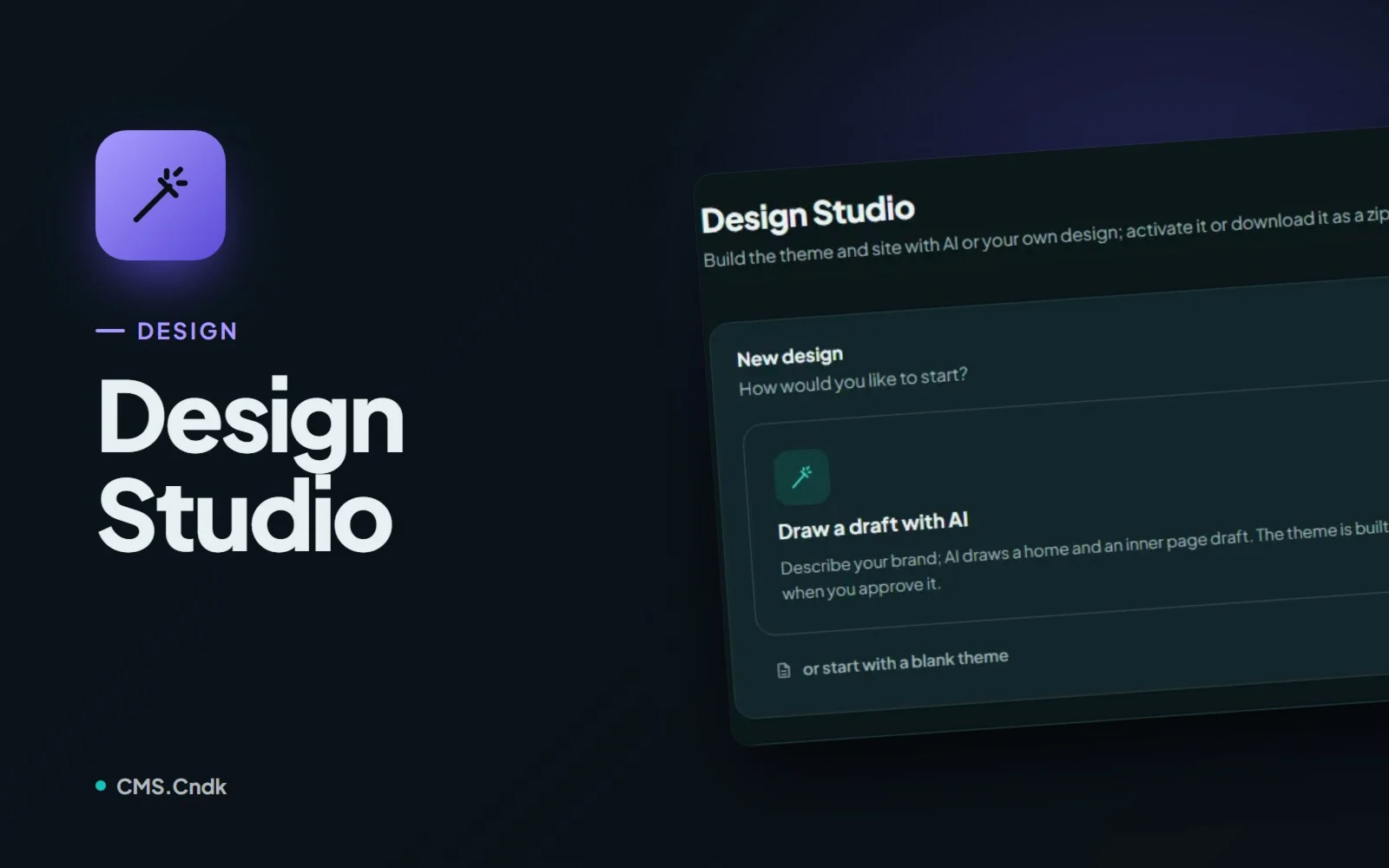
Design Studio: give every client site a look of its own
Design Studio uses AI to draw, build and refine a theme that fits the brand, from a short description, an uploaded design or a blank start.
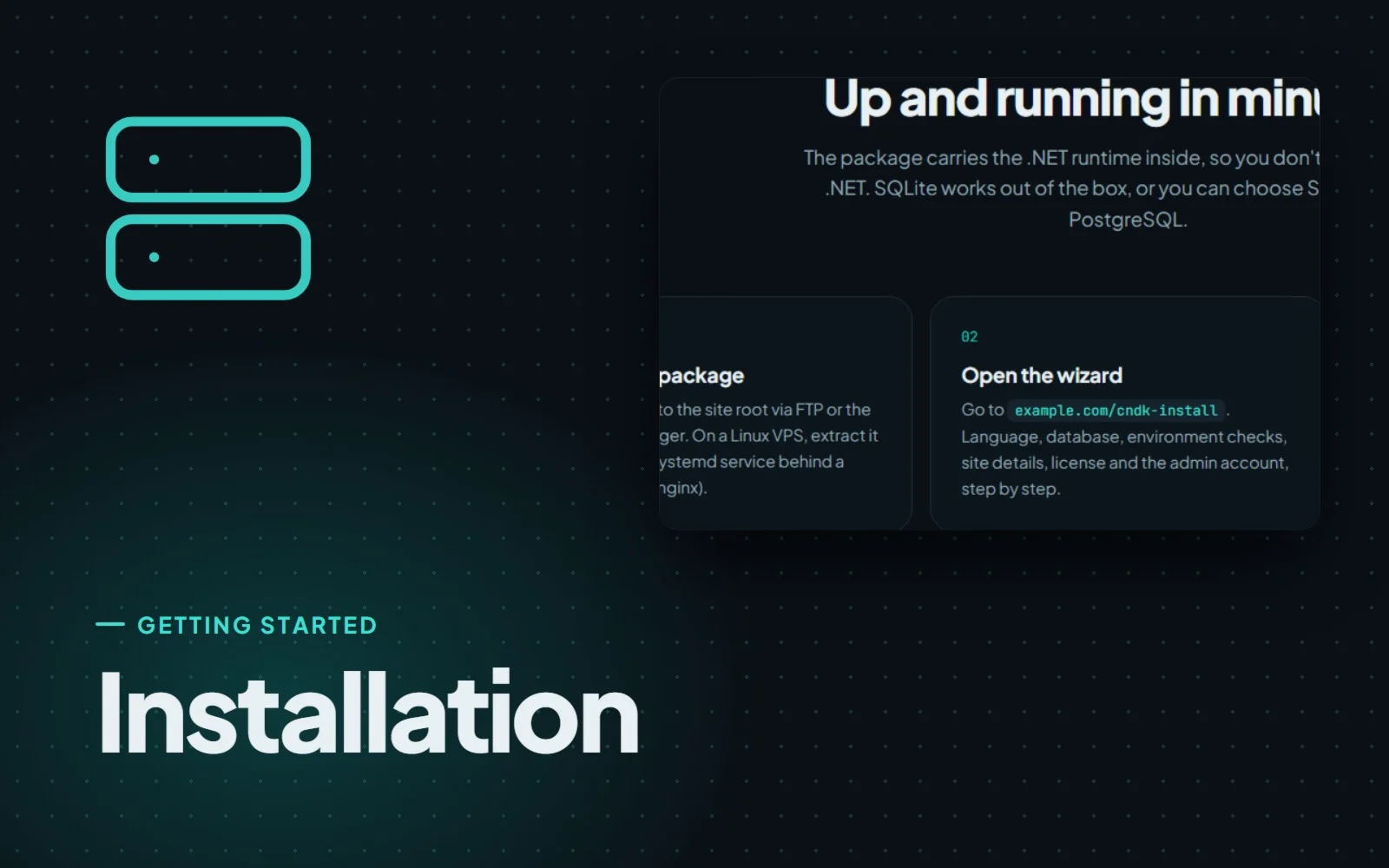
Installing CMS.Cndk on IIS, Plesk or a Linux VPS, step by step
CMS.Cndk ships as a self-contained package for Windows or Linux. Upload it, open the setup wizard in your browser and follow it from language to admin account.
Ready sites: a finished website that is only ever sold once
Ready sites are complete CMS.Cndk websites with design, pages and sample content in place, installed on your server and sold to one buyer only.